A slow website costs you visitors before they have read a word. Google’s research with SOASTA found that as page load time goes from one second to three seconds, the probability of a mobile visitor bouncing increases by 32%. The good news is that most small business sites are slow for the same handful of reasons, and most of them can be fixed without a developer.
Quick answer: Start by measuring with PageSpeed Insights, then fix in order of impact: resize and compress images, turn on page caching and a CDN, remove unused plugins and third-party scripts, defer non-critical JavaScript, optimise fonts, and upgrade hosting if your server response is slow. Re-test after each change and track real-user Core Web Vitals in Search Console.
Step 0: Measure before you change anything
- PageSpeed Insights gives you both real-user field data (if your site has enough traffic) and a lab test with specific diagnostics. Test your homepage, a typical blog post and your most important landing or product page.
- Google Search Console’s Core Web Vitals report groups your URLs into good, needs improvement and poor, based on real Chrome users.
- Chrome DevTools (Network and Performance panels) shows exactly which files are large or slow.
Write down the starting numbers: LCP, CLS, INP, total page weight and number of requests. You will need them to prove the fixes worked. If these metrics are new to you, read Core Web Vitals and images.
The checklist
1. Images (usually the biggest win)
- Resize images to the size they are displayed at, not the camera’s resolution. Our resize image in pixels tool helps.
- Compress photos; most content images can be 60 KB to 200 KB. Try the JPG compressor.
- Serve WebP or AVIF where possible; see WebP vs AVIF vs JPEG.
- Lazy load images below the fold, but never the hero image. See lazy loading and SEO.
- Set width and height on all images to prevent layout shift.
- Replace background videos and autoplay sliders on mobile with a single optimised image.
2. Caching and delivery
- Enable page caching (through your host or a caching plugin) so pages are not rebuilt for every visitor.
- Use a CDN to serve static files from locations near your visitors.
- Set long browser cache lifetimes for images, CSS and JavaScript.
- Enable compression (Brotli or Gzip) for text files and make sure HTTP/2 or HTTP/3 is on.
3. Plugins, apps and third-party scripts
- Remove plugins and apps you no longer use; deactivate is not enough if they still load assets.
- Audit third-party scripts: chat widgets, heatmaps, social feeds, extra analytics tags and ad pixels. Each one adds weight and can hurt INP.
- Load chat widgets and similar tools only after the visitor interacts, or after a delay.
- Replace embedded social feeds with static images linking to your profiles.
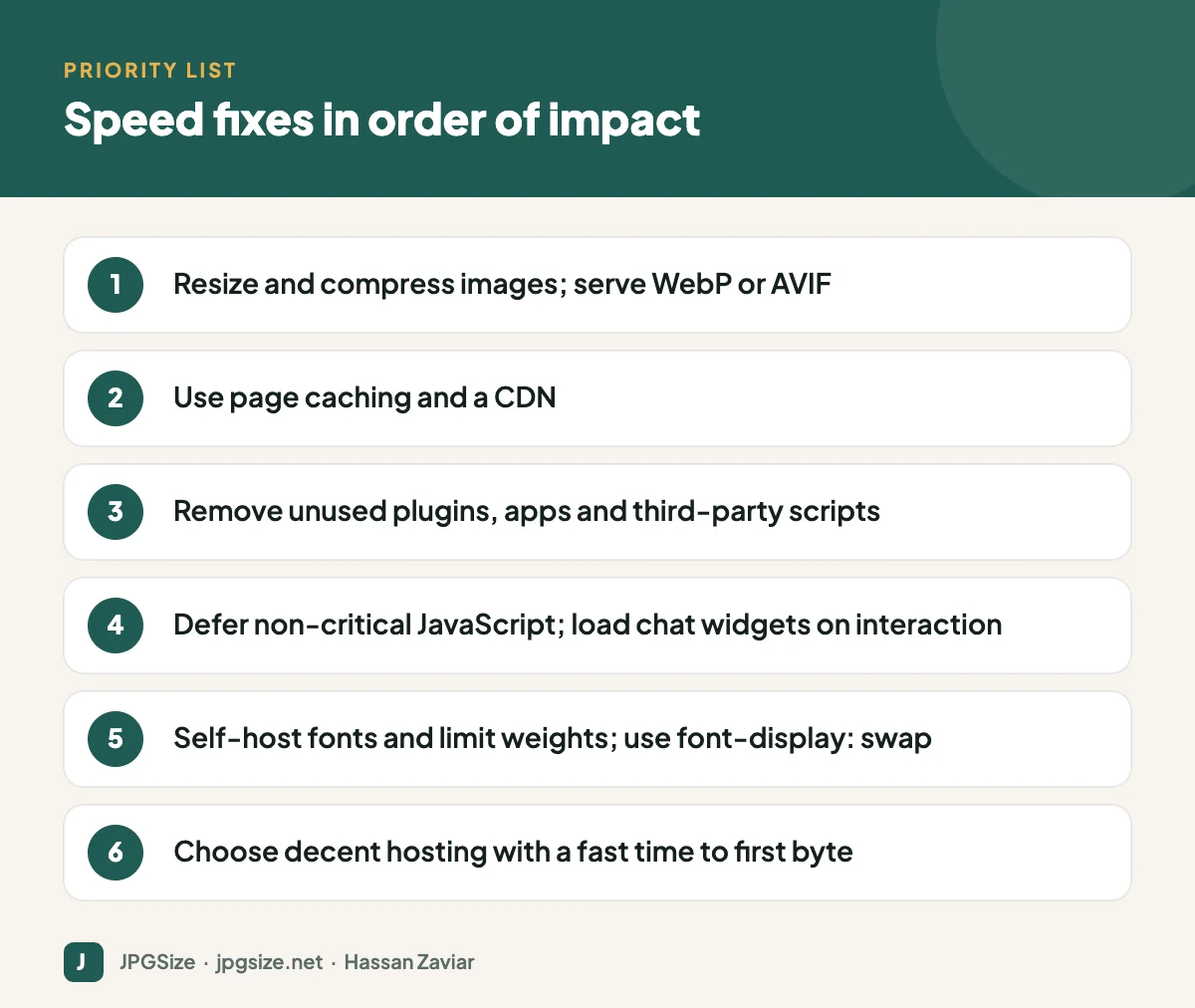
4. JavaScript and CSS
- Defer or delay non-critical JavaScript.
- Remove unused CSS and JavaScript where your theme or plugin allows it.
- Avoid page builders that load large libraries on every page when simpler blocks would do.
- Minify CSS and JavaScript (most caching plugins do this).
5. Fonts
- Limit custom fonts to one or two families and only the weights you actually use.
- Self-host fonts or preconnect to the font provider.
- Use font-display: swap so text appears immediately.
- Consider system fonts for body text.
6. Hosting and server
- Check time to first byte (TTFB). If it is consistently slow even with caching, your hosting is the bottleneck.
- Use a current, supported PHP version on WordPress sites.
- Choose a data centre region close to most of your customers.
- Keep the database tidy: remove old revisions, spam comments and transients.
What results to expect
Every site is different, but for a typical small business WordPress site with unoptimised photos and a dozen plugins, image optimisation and caching alone often cut page weight by more than half. Removing a chat widget or social feed can noticeably improve responsiveness on mobile. Report your before-and-after numbers from Step 0 so you know which change mattered.
Speed is a marketing issue, not only a technical one
Faster pages support SEO through Core Web Vitals, but the bigger payoff is conversion. Paid traffic costs the same whether the visitor waits or leaves, so a slow landing page directly increases your cost per lead. If you run ads, combine this checklist with our guide to landing page optimization. For the full image picture, see our image SEO guide.
Maintenance: keep it fast
- Re-test key pages monthly and after installing any plugin or app.
- Train everyone who uploads content to resize and compress images first; a single 5 MB upload can undo your work.
- Review third-party scripts every quarter; marketing tags tend to accumulate.
Quick wins you can finish in 30 minutes
If you only have half an hour, do these five things in order and then re-test:
- Find the heaviest images. Sort the Network panel in Chrome DevTools by size, or look at PageSpeed Insights’ “Properly size images” and “Serve images in next-gen formats” diagnostics. Replace the three largest files with resized, compressed versions.
- Fix the hero image. Make sure the first large image is not lazy loaded, is no wider than it needs to be and is under roughly 200 KB.
- Switch on caching. Most managed WordPress hosts have a one-click page cache. If yours does not, a reputable caching plugin with default settings is a big improvement.
- Remove one heavy third-party script. The usual suspects are unused tracking pixels, a social media feed widget or a chat tool that nobody answers.
- Delete inactive plugins. Fewer plugins means fewer things to load, update and secure.
These changes rarely break anything, and together they often move a site from “poor” to “needs improvement” or better on mobile. Save the bigger projects, such as changing themes or hosting, for after you have seen the effect of the quick wins.
Frequently asked questions
What is a good page load time?
Aim for a Largest Contentful Paint of 2.5 seconds or less on mobile, measured on real users. That is Google’s threshold for a good experience.
What slows down a WordPress site the most?
Usually oversized images, too many plugins and third-party scripts, and slow hosting without page caching.
Does website speed affect SEO?
Yes, through Core Web Vitals and page experience, although relevance and content quality matter more. Speed has a bigger direct effect on bounce rate and conversions.
Is a 100 PageSpeed score necessary?
No. The lab score is a diagnostic tool. Focus on passing Core Web Vitals for real users and on the pages that matter most to your business.
Sources and further reading
About the author: Hassan Zaviar writes about image optimization, SEO, AI and digital marketing for JPGSize and works on the site’s free browser-based image tools. Last reviewed: 24 September 2026. Spotted something out of date? Tell us and we will update it.