On most content pages and online stores, the largest thing a visitor sees when the page loads is an image. That makes images the most common cause of a slow Largest Contentful Paint (LCP), and images without reserved space are a classic cause of layout shift (CLS).
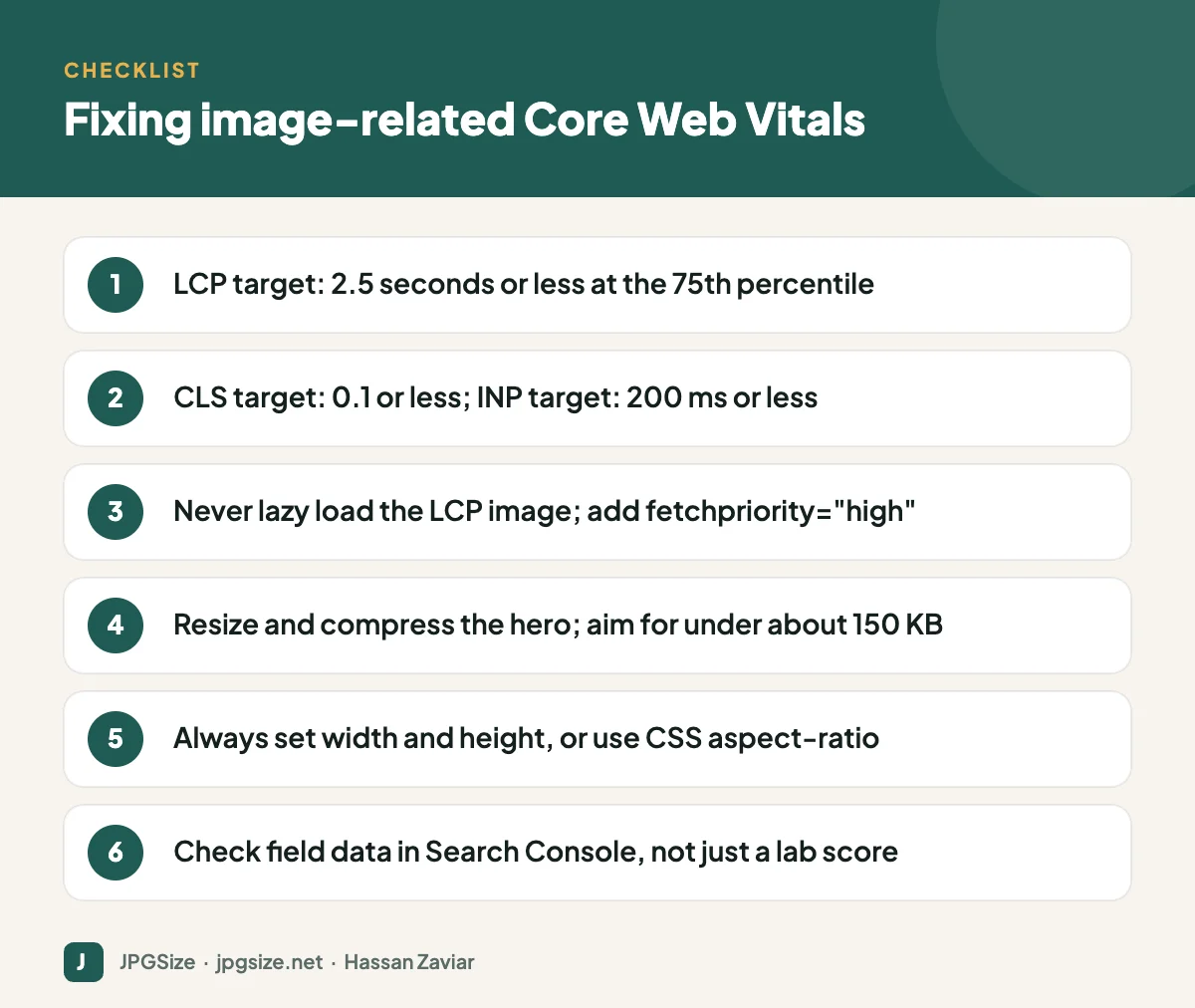
Quick answer: To fix image-related Core Web Vitals, find the LCP element, make sure that image is discoverable in the HTML, not lazy loaded, marked with fetchpriority=”high”, properly sized and compressed; then give every image width and height attributes (or a CSS aspect-ratio) so the layout does not jump. Good LCP is 2.5 seconds or less and good CLS is 0.1 or less.

Core Web Vitals in one minute
Core Web Vitals are three metrics Google uses to measure real-world user experience. Google published these thresholds for the 75th percentile of page loads:
| Metric | What it measures | Good | Poor |
|---|---|---|---|
| LCP (Largest Contentful Paint) | Loading: when the largest visible element renders | 2.5 s or less | Over 4.0 s |
| INP (Interaction to Next Paint) | Responsiveness to clicks, taps and key presses | 200 ms or less | Over 500 ms |
| CLS (Cumulative Layout Shift) | Visual stability: how much content jumps around | 0.1 or less | Over 0.25 |
INP replaced First Input Delay (FID) as a Core Web Vital in March 2024. Images rarely affect INP directly, so this guide focuses on LCP and CLS.
Step 1: Find the LCP element
Open PageSpeed Insights, run your URL and look at the “Largest Contentful Paint element” diagnostic. In Chrome DevTools, the Performance panel also highlights the LCP element. If it is an img element or a background image, you are in the right guide.
Check the field data at the top of the PageSpeed Insights report or in the Core Web Vitals report in Google Search Console. Lab scores are useful for debugging, but rankings use real-user data from the Chrome UX Report.
Step 2: Fix a slow image LCP
LCP time can be broken into four parts: time to first byte, resource load delay, resource load duration and element render delay. Images usually hurt the middle two.
Reduce load delay: let the browser find the image early
- Put the hero image in the HTML as an img element, not in a CSS background or injected by JavaScript. The browser’s preload scanner can only prioritise what it can see.
- Never lazy load the LCP image. loading=”lazy” tells the browser to wait, which is the opposite of what you want. Read lazy loading images and SEO for the details.
- Add fetchpriority=”high” to the hero image. Recent versions of WordPress add this automatically to the image they think is the LCP candidate, but check the output.
- If the image is only discovered late (for example a CSS background in a slider), preload it with a link rel=”preload” element in the page head.
Reduce load duration: make the file smaller
- Resize to the displayed size. A 4032 x 3024 phone photo in a 1200-pixel-wide hero wastes most of its bytes. Use our resize image in pixels tool.
- Use a modern format. WebP and AVIF are much smaller than JPEG at similar quality; our WebP vs AVIF vs JPEG test shows the difference.
- Compress sensibly. For a full-width hero, something around 100 KB to 200 KB is usually achievable. The JPG compressor or reduce image size in KB tool can hit an exact target.
- Serve responsive sizes with srcset and sizes so phones download a smaller file than desktops. See responsive images with srcset.
- Use a CDN if your visitors are far from your server.
Step 3: Fix layout shift from images
CLS happens when content moves after it has been painted. The classic image cause is simple: the browser does not know how tall an image will be until it downloads it, so text below the image jumps down when it arrives.
- Always set width and height attributes on img elements. Modern browsers use them to calculate the aspect ratio and reserve space, even when CSS makes the image responsive with width: 100% and height: auto.
- For images inside containers with a fixed shape, such as cards or thumbnails, use the CSS aspect-ratio property.
- Reserve space for ads, embeds and banners that load late.
- Avoid inserting images above existing content after the page has loaded, such as a promo banner that pushes the article down.
WordPress adds width and height to images inserted through the block editor, which is one reason to avoid pasting raw HTML images.
Step 4: Verify the fix
- Re-run PageSpeed Insights and confirm the LCP element and its timing in the lab data.
- Test on a throttled mobile connection in Chrome DevTools, because that is where problems appear.
- Wait for field data to update. The Chrome UX Report uses a rolling 28-day window, so Search Console will take a few weeks to reflect improvements.
Common mistakes
- Optimising every image except the hero, which is the one that matters for LCP.
- Using a slider or carousel as the hero; they often load images late through JavaScript.
- Lazy loading everything with a plugin, including the first image.
- Compressing hard but serving a 3000-pixel-wide file anyway.
- Chasing a perfect lab score while real-user data is already good.
A worked example
Imagine a blog post whose hero is a 4000 x 2667 pixel JPEG straight from a camera, weighing 3.1 MB, lazy loaded by a plugin and shown in a 1200-pixel-wide column. On a mid-range phone over a 4G connection, that file alone can take several seconds to download, and because it is lazy loaded, the browser does not even request it until layout is complete.
Fixing it takes four changes:
- Remove the lazy loading from the first image and add fetchpriority=”high”.
- Resize the image to 1600 pixels wide (enough for high-density screens at the column width) and provide smaller versions through srcset for phones.
- Save it as WebP or AVIF at a sensible quality, which typically brings a photo of that size down to somewhere in the region of 100 KB to 200 KB.
- Make sure the img element has width and height attributes so the text below it does not jump.
None of these changes alters how the page looks, but together they remove most of the image’s contribution to LCP and CLS.
Images, caching and CDNs
Once the image itself is optimised, delivery matters. Serve images with long cache lifetimes (for example a Cache-Control max-age of a year for files whose URLs change when the image changes), use HTTP/2 or HTTP/3, and consider an image CDN that resizes and converts formats automatically. Caching does not help a visitor’s first page view, which is why the file size and priority fixes above come first.
Frequently asked questions
Do Core Web Vitals affect rankings?
They are part of Google’s page experience signals. Google has said that great content can still rank with average page experience, so treat Core Web Vitals as a tiebreaker and a user-experience improvement rather than a shortcut to the top.
What is a good LCP time?
2.5 seconds or less for at least 75% of page loads, measured separately for mobile and desktop.
How do I stop images causing layout shift?
Give every image width and height attributes or a CSS aspect-ratio so the browser can reserve the right space before the image loads.
Should I preload my hero image?
Only if the browser discovers it late, for example when it is a CSS background or loaded by JavaScript. If it is a normal img element in the HTML, fetchpriority=”high” is usually enough.
Sources and further reading
- web.dev: Web Vitals
- web.dev: Optimize Largest Contentful Paint
- web.dev: Cumulative Layout Shift
- web.dev: Interaction to Next Paint
About the author: Hassan Zaviar writes about image optimization, SEO, AI and digital marketing for JPGSize and works on the site’s free browser-based image tools. Last reviewed: 24 September 2026. Spotted something out of date? Tell us and we will update it.