You export a crisp photo, upload it to Instagram or send it on WhatsApp, and it comes out soft, blotchy or oddly coloured. It is not your imagination. Every major platform resizes and recompresses uploads, and some habits make the damage much worse. Understanding what happens lets you prepare images that survive the process.
Quick answer: Social platforms recompress and often resize every upload to save storage and bandwidth. Photos look worse when they are uploaded at the wrong size or ratio (forcing a resize or crop), already compressed (so they are compressed twice), not in sRGB, or full of fine detail and noise. Upload at the platform’s recommended size and ratio, as a high-quality sRGB JPEG, from the original file, with high-quality upload settings enabled.
Why platforms compress your photos
Instagram, Facebook, WhatsApp and X handle billions of images. Storing and delivering them at original quality would be enormously expensive and would make feeds slow on mobile data. So each platform:
- Resizes your image to its standard dimensions (often 1080 pixels wide for feeds).
- Re-encodes it with its own compression settings, usually JPEG, WebP or another efficient format depending on the device.
- Creates several versions at different sizes for thumbnails, feeds and full-screen views.
- Strips most metadata, sometimes including the colour profile.
This happens regardless of what you upload. What you control is the starting point.
The five things that make it worse
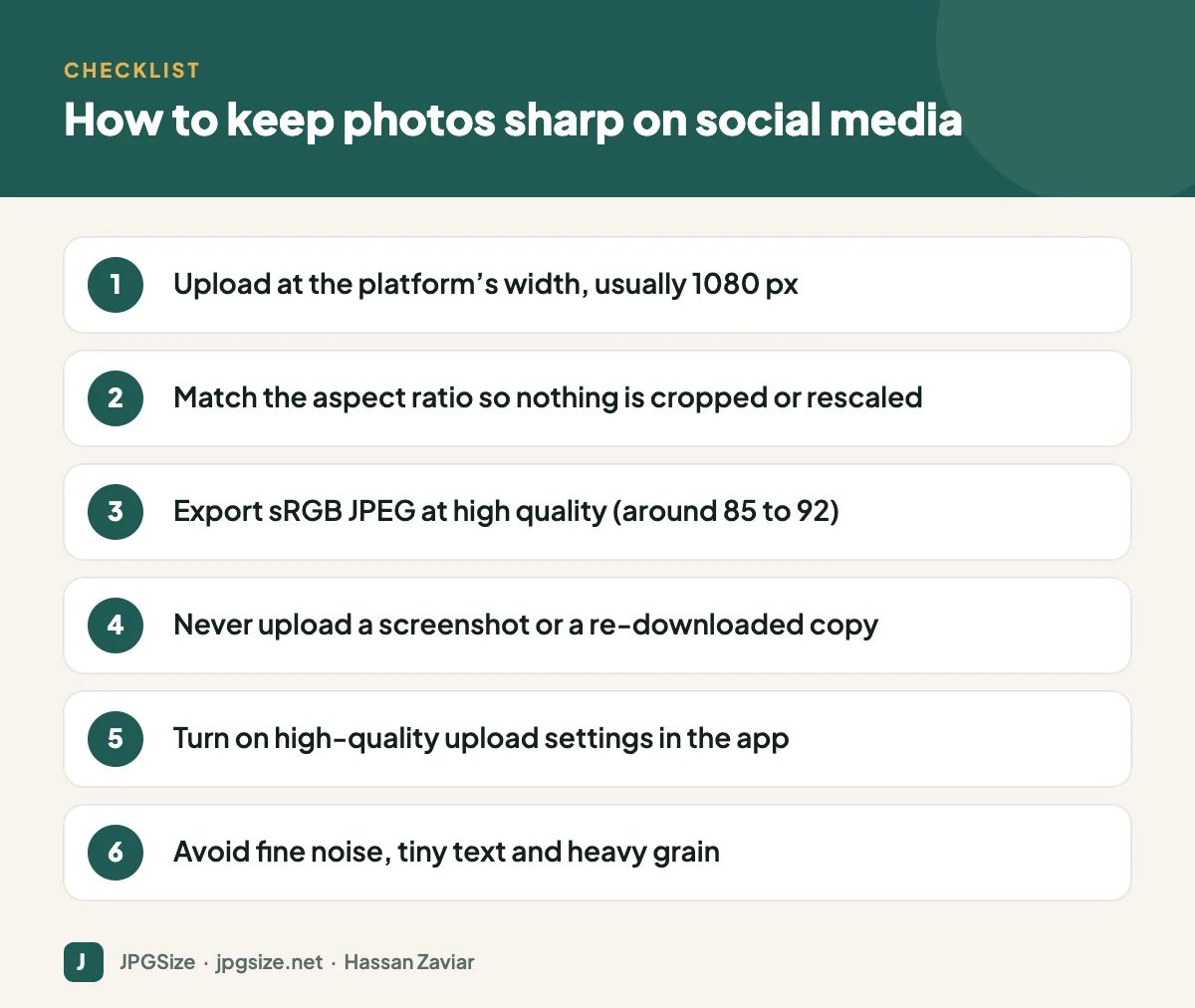
1. Wrong dimensions
If you upload a 4000-pixel-wide photo, the platform scales it down with its own algorithm, which may be optimised for speed rather than sharpness. If you upload something smaller than the display size, it is scaled up and looks soft. Uploading at the platform’s width (see our social media image sizes cheat sheet) avoids both.
2. Wrong aspect ratio
If your image does not fit an allowed ratio, it is cropped and then resized. Instagram, for example, supports ratios from 1.91:1 landscape to 3:4 portrait for feed posts; anything taller is cropped. See Instagram image sizes.
3. Double compression
Every time a JPEG is compressed, detail is lost. If you upload an image that was already compressed, such as a screenshot, a photo downloaded from WhatsApp or Facebook, or an image saved at low quality, the platform compresses the compressed version. Artefacts multiply: blocks, halos around text and smeared textures. Always upload from the original export. Our guide to reducing image size without losing quality explains why compressing twice is so damaging.
4. Colour profiles
Photos edited in wide-gamut profiles such as Adobe RGB or Display P3 can look dull or shifted after upload if the platform strips or ignores the profile. Export in sRGB, the standard for the web.
5. Difficult content
Compression struggles with fine noise, film grain, confetti, water spray, foliage and small text. These need many bits to encode, so the platform’s fixed budget runs out and the image gets blotchy. Clean, simple images with larger areas of even colour survive better.
Platform-specific tips
Upload at 1080 pixels wide in a supported ratio (3:4, 4:5, 1:1 or 1.91:1). In the app’s settings, look for the media quality option to always upload at the highest quality, which helps on slower connections.
Upload photos at the recommended sizes and prefer the mobile app or desktop site on a good connection. For graphics with text, a PNG can keep edges sharper. See Facebook image sizes.
WhatsApp compresses photos heavily by default. Newer versions include an HD option for photos, and sending the image as a document delivers the original file without compression, which is useful for sharing proofs with clients or printers. Never use a WhatsApp-received image as the source for a form upload or a print job.
X (Twitter)
X recompresses images to keep file sizes down. Uploading at a standard size such as 1600 x 900 for landscape and using high-quality JPEG generally gives the best result.
Recommended export settings
| Setting | Recommendation |
|---|---|
| Width | Platform display width, usually 1080 px (1600 px for X landscape) |
| Aspect ratio | One the platform supports natively |
| Format | JPEG for photos; PNG for graphics with text |
| Quality | High, around 85 to 92 in most editors |
| Colour profile | sRGB |
| Sharpening | Light output sharpening for screen after resizing |
Use our resize image in pixels tool to hit exact dimensions, and keep the quality high; social uploads are one case where you should not compress aggressively yourself, because the platform will compress again.
What about videos and Reels?
The same logic applies: export at the platform’s resolution and frame rate, with a sensible bitrate, and avoid re-uploading downloaded copies. Vertical video at 1080 x 1920 is standard for Reels, Shorts and TikTok.
When quality matters most
For product photos, portfolios and brand campaigns, consider linking to your own website, where you control compression and can serve high-quality WebP or AVIF images; see WebP vs AVIF vs JPEG. Social posts get attention; your website can show the full detail.
A quick before-and-after test
If you are not sure whether your process is the problem, try this simple experiment:
- Take one original photo and export two versions: a high-quality 1080 x 1350 sRGB JPEG, and a screenshot of that same image taken from your phone’s gallery.
- Post both privately (for example to a close friends Story, or as drafts where the platform allows), or send both to yourself.
- Compare them at full screen on your phone.
In most cases the screenshot version looks noticeably worse, because it was resized to your screen resolution and compressed twice. That one habit, uploading screenshots or re-downloaded copies, is behind a large share of “blurry upload” complaints.
Designing graphics that survive compression
Brand graphics, quotes and promotional images can be designed to withstand recompression:
- Use solid colours or gentle gradients rather than fine textures or noise.
- Keep text large, bold and high-contrast; thin fonts break up first.
- Avoid red text on busy backgrounds, as colour detail is compressed more aggressively than brightness.
- Leave generous margins so text is not near edges that might be cropped.
- Export at exactly the platform size so no extra resize is applied.
Frequently asked questions
Why does Instagram make my photos blurry?
Instagram resizes and recompresses every upload. Blur usually comes from uploading the wrong size or ratio, uploading an already compressed image, or poor connection settings. Upload a 1080-pixel-wide, high-quality sRGB JPEG in a supported ratio.
How do I send photos on WhatsApp without losing quality?
Use the HD photo option where available, or send the image as a document, which transfers the original file without compression.
Should I upload PNG or JPEG to social media?
JPEG for photos, PNG for graphics with text, logos or flat colours. Platforms may convert both, but starting with the right format gives better results.
Does uploading a larger image improve quality?
Not usually. Very large uploads are scaled down by the platform, sometimes less sharply than if you had resized them yourself. Upload at the recommended size.
Sources and further reading
About the author: Hassan Zaviar writes about image optimization, SEO, AI and digital marketing for JPGSize and works on the site’s free browser-based image tools. Last reviewed: 24 September 2026. Spotted something out of date? Tell us and we will update it.