Removing a background used to mean twenty minutes with the pen tool in Photoshop. AI tools now do it in seconds, and for most product photos, portraits and social graphics the result is good enough to publish. Knowing how the technology works helps you get cleaner edges and spot the cases where it still struggles.
Quick answer: AI background removal uses segmentation models trained on millions of labelled images to identify which pixels belong to the main subject and which to the background, then refines the edge with a transparency mask. For clean results, start with a sharp, well-lit photo that has contrast between subject and background, check hair and fine edges at full zoom, and export as PNG or WebP if you need transparency.
How AI background removal works
Background removal is a computer vision task called segmentation, usually combined with matting:
- Segmentation: a neural network classifies each pixel as subject or background. Models learn this from large datasets of images where people have carefully outlined the foreground. Modern models recognise people, products, animals, cars and most everyday objects.
- Matting: real edges are not binary. Hair, fur, lace and motion blur contain pixels that are partly subject and partly background. Matting models estimate an alpha value (how transparent each pixel should be), which produces soft, natural edges instead of a jagged cut.
- Refinement: many tools also decontaminate colour at the edges, removing the green tint from a subject shot against grass or the grey halo from a studio backdrop.
Some tools run entirely in your browser or on your device, which is useful for privacy because the image never leaves your computer. Others process images in the cloud with larger models.
Common uses in marketing
- E-commerce product images: marketplaces and many online shops prefer the main product image on a pure white background. See product image optimization.
- Social media graphics: cut-out people and products placed on brand colours or designed backgrounds.
- Thumbnails: YouTube creators cut themselves out to place over bold backgrounds; see YouTube thumbnail size and design.
- Profile photos and headshots: replacing a messy background with a neutral one. See professional profile photos.
- Ads and banners: placing products into different scenes for different campaigns, often combined with AI scene generation as described in AI product photography.
Where AI still struggles
- Hair and fur, especially against busy or similarly coloured backgrounds.
- Transparent and reflective objects such as glasses, bottles and jewellery, where the background shows through.
- Low contrast: a white product on a white table, or dark hair against a dark wall.
- Multiple subjects: the tool may keep one person and remove another, or keep a chair you wanted gone.
- Shadows: most tools remove the natural shadow, which can make a product look like it is floating. Many editors can add a realistic shadow back.
How to get clean cutouts every time
Before you shoot
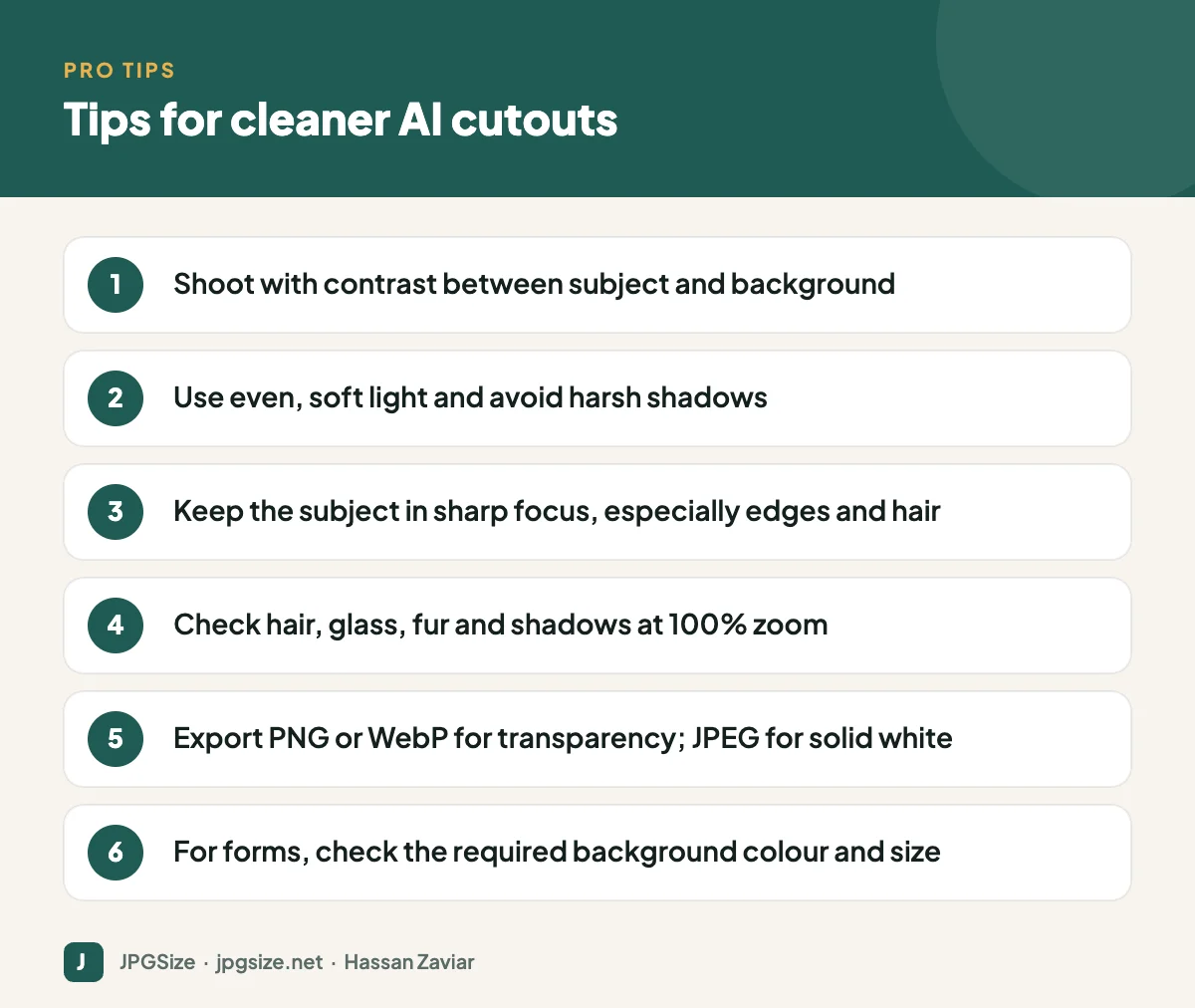
- Choose a plain background that contrasts with the subject: a light backdrop for dark products and vice versa.
- Light the subject evenly with soft light, such as a window with a sheer curtain, to avoid hard shadows.
- Keep the subject in focus from edge to edge; blurry edges are hard to separate.
- Leave space around the subject so nothing important touches the frame.
After removal
- Zoom to 100% and inspect edges, hair, gaps between arms and body, and any text or logos.
- Use the tool’s restore and erase brushes to fix small mistakes.
- Add a subtle shadow if the product looks like it is floating.
- Decide on the final background: transparent, solid white, brand colour or a new scene.
Choosing the right export format
| Need | Format | Why |
|---|---|---|
| Transparent background for web | WebP or PNG | Both support transparency; WebP is usually much smaller |
| Transparent background for design tools | PNG | Universally supported by editors |
| Solid white background for marketplaces | JPEG | Smaller files and widely accepted |
| Government or exam form | JPEG | Almost always required; check size limits |
Transparent PNGs can be large. If you are using the cutout on a website, convert it to WebP and compress it; see WebP vs AVIF vs JPEG. For forms with strict limits, resize and compress with tools such as resize image to 50KB or reduce image size in KB.
Background removal for official photos
Many applications, including passports and exam forms, require a plain white or light background. AI removal can help you replace a cluttered background, but be careful: some authorities reject photos that have been digitally altered, and edges around hair must look natural. Always check the official specification first. Our guides to passport photo dimensions and why forms reject photos cover common requirements and errors.
Privacy considerations
Photos of people are personal data in many jurisdictions. If you process customer or employee images, prefer tools that run locally in the browser or vendors with clear data-handling terms, and avoid uploading ID documents to free online services.
A quick workflow for product listings
For a batch of product photos, a repeatable routine saves hours:
- Shoot every product in the same spot with the same lighting and camera distance.
- Run the batch through your background remover and review each cutout at full size.
- Place each product on the same canvas size (for example 2000 x 2000 pixels) with consistent margins, so the product fills roughly 85% of the frame.
- Add a soft shadow if your store style uses one, then export as JPEG on white for marketplaces or WebP for your own site.
- Name files descriptively (for example acme-ceramic-mug-blue-front.jpg) and write alt text as you upload.
Consistency across a catalogue makes a store look professional and helps shoppers compare products at a glance.
Frequently asked questions
How does AI remove backgrounds?
It uses a segmentation model to label each pixel as subject or background, then a matting step to create soft, partially transparent edges around hair and fine details.
Why does my cutout have a halo around the edges?
The edge pixels still contain some of the old background colour. Use a colour decontamination or edge refinement option, or place the cutout on a background of similar brightness.
What format should I save a transparent image in?
Use PNG for editing and maximum compatibility, and WebP for websites because it supports transparency with much smaller files. JPEG does not support transparency.
Can I use AI background removal for my passport photo?
Check the official rules first. Some authorities do not accept digitally altered photos. If allowed, make sure the result looks natural and meets the size and background colour requirements.
Sources and further reading
About the author: Hassan Zaviar writes about image optimization, SEO, AI and digital marketing for JPGSize and works on the site’s free browser-based image tools. Last reviewed: 24 September 2026. Spotted something out of date? Tell us and we will update it.