You have a 600-pixel product photo and need a 2000-pixel banner. Traditional resizing makes it bigger but blurry. AI upscalers promise sharp results by filling in detail that was never captured. Sometimes the results are remarkable. Sometimes they quietly change what the image shows. Here is how to tell the difference.
Quick answer: AI image upscaling uses neural networks trained on pairs of low- and high-resolution images to predict what extra detail should look like when an image is enlarged. It produces sharper results than traditional interpolation, especially at 2x to 4x, but the added detail is invented. Use it for marketing and creative images, check faces and text carefully, and never use it where accuracy matters, such as ID photos or evidence.
Traditional resizing vs AI upscaling
When you enlarge an image in a normal editor, the software uses interpolation: it calculates new pixels from the surrounding ones using methods such as nearest neighbour, bilinear, bicubic or Lanczos. No new information is created, so edges become soft and fine texture turns to mush. That is fine for small enlargements and perfect for reducing size, which is what our resize image in pixels tool does.
AI upscaling (also called super-resolution) works differently. A model is trained on millions of image pairs: a high-resolution original and a degraded, low-resolution copy. It learns what sharp versions of common textures, edges, faces and patterns tend to look like. When you give it a small image, it generates a larger one with plausible high-frequency detail such as crisp edges, hair strands, fabric weave and foliage.
| Interpolation (bicubic, Lanczos) | AI upscaling | |
|---|---|---|
| New detail | None; smooths existing pixels | Predicted by the model |
| Sharpness at 2x to 4x | Soft | Usually sharp |
| Faithfulness | High; nothing invented | Lower; can add or change details |
| Speed | Instant | Seconds to minutes |
| Best for | Small enlargements, all downsizing | Large enlargements of creative images |
How AI upscalers work
Earlier approaches used convolutional neural networks and generative adversarial networks (GANs). Models such as ESRGAN and Real-ESRGAN became popular because they handle real-world degradation like JPEG compression and noise. Newer upscalers increasingly use diffusion models, the same family as many image generators. Diffusion upscalers can produce very convincing texture, but they have more freedom to invent, which is why many tools offer a “creativity” or “fidelity” slider.
Most tools also include related clean-up: removing JPEG blocking, reducing noise, restoring faces and sharpening. Face restoration models are particularly aggressive, reconstructing eyes, teeth and skin from very little information.
Where AI upscaling is genuinely useful
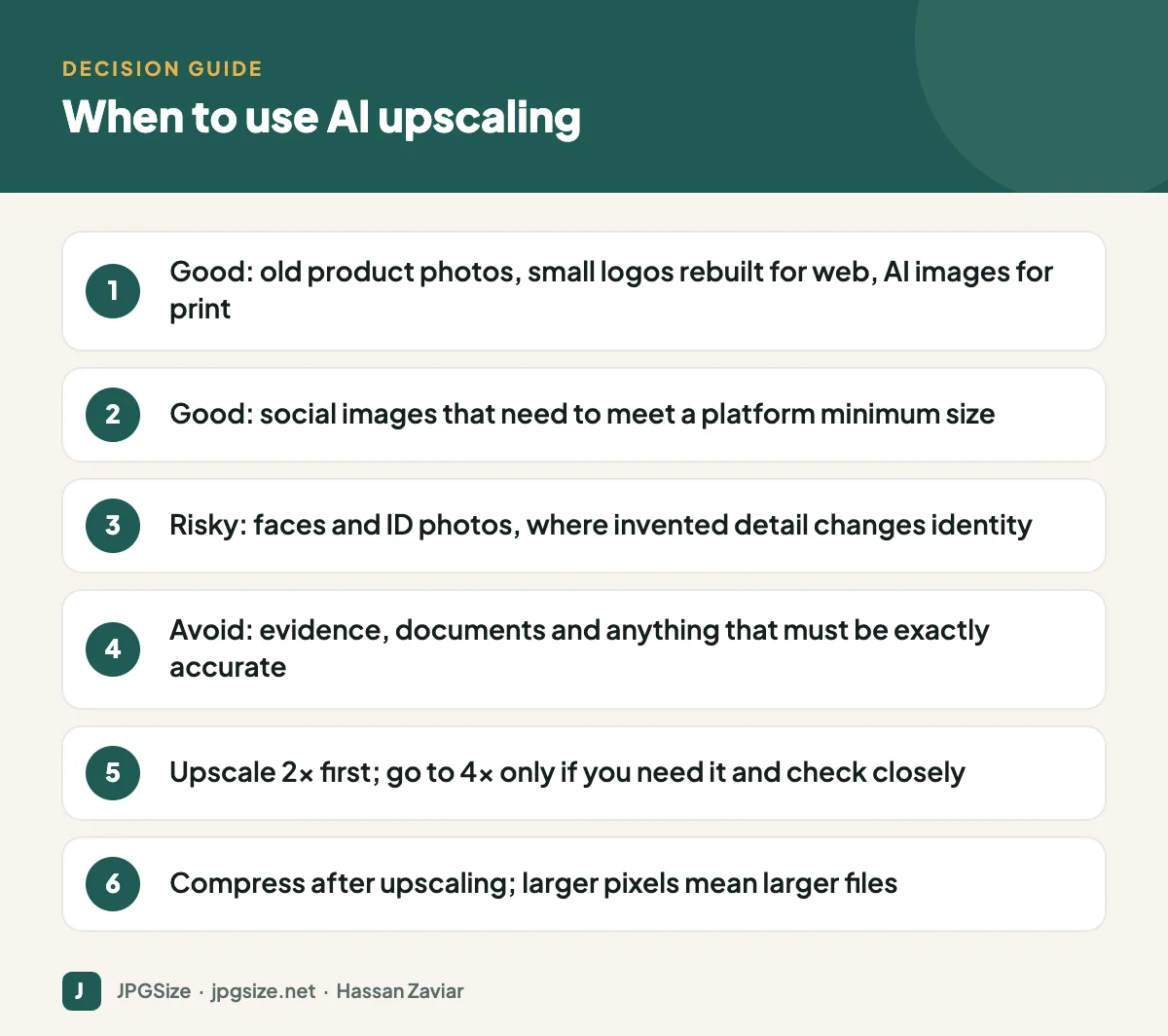
- Old or small product photos that you cannot reshoot, enlarged for a new website layout or marketplace minimum size.
- AI-generated images, which often come out at modest resolutions and need enlarging for print, banners or YouTube thumbnails.
- Social media and ad formats with minimum dimensions, such as the sizes in our social media image size cheat sheet and Google Ads image sizes.
- Archive and heritage images for display, where the upscaled version is clearly presented as an enhanced copy.
- Illustrations and anime-style art, which upscale especially well because of clean lines and flat colours.
Where AI upscaling can go wrong
Invented detail
The model does not know what was really there. It might add texture to a smooth surface, turn a blurred sign into convincing but wrong letters, or give a person slightly different eyes. For marketing visuals that may be acceptable; for anything that must be accurate, it is not.
Faces and identity documents
Face restoration can change someone’s appearance. Do not use AI upscaling on photos for passports, ID cards, exam registrations or any official application. Those forms need a genuine, unaltered photo at the right size, and our guides such as passport size photo dimensions explain the requirements. Resizing to the required pixels with normal interpolation is the correct approach.
Over-sharpening and the “plastic” look
Pushing to 8x or using maximum enhancement often creates waxy skin, crunchy edges and repeating patterns. Two careful 2x passes, or one 2x pass followed by minor traditional resizing, usually looks more natural than one aggressive 8x pass.
File size
Upscaling multiplies pixel count: 2x means four times as many pixels. A 4x upscale has sixteen times the pixels. Always compress afterwards for the web; see how to reduce image size in KB without losing quality.
A practical upscaling workflow
- Start from the best source. Use the original file, not a screenshot or a social media download that has already been compressed.
- Clean first if needed. Remove heavy JPEG artefacts and noise before enlarging.
- Upscale by the smallest factor that meets your need. If you need 1600 pixels and have 800, use 2x.
- Inspect at 100% zoom. Check faces, text, logos, hands, edges and repeating textures.
- Resize to the exact target dimensions with normal resizing.
- Export and compress for the destination: WebP or AVIF for websites, high-quality JPEG for social uploads, and the required format for print.
- Keep the original. Store it alongside the upscaled version so you can redo it with better tools later.
Is upscaled content honest?
For product images, the upscaled photo must still represent the product accurately; invented stitching or textures could mislead buyers. For news, evidence and documentation, disclose enhancement or avoid it. For general marketing visuals, upscaling is a normal production step, much like retouching.
Upscaling vs reshooting
Before you upscale, ask whether a new photo is possible. A fresh photo from a modern phone, taken in good light, contains real detail that no model can match, and it avoids any risk of invented features. Upscaling makes the most sense when the original moment cannot be recreated: an event photo, a discontinued product, an archive image or an AI-generated concept that needs to be printed large.
When you do upscale for commercial use, keep a record of which images were enhanced. If a customer, client or platform ever questions an image, you can explain how it was produced, which supports transparency and trust.
Frequently asked questions
Does AI upscaling really increase quality?
It increases apparent sharpness and detail, often dramatically. The added detail is predicted rather than recovered, so it may not match reality exactly.
How much can you upscale an image with AI?
2x and 4x usually look good for most images. Beyond that, results depend heavily on the source and often look artificial.
Can I upscale a photo for a passport or exam form?
You should not use AI enhancement for official photos, because it can alter facial features. Use a genuine photo and resize it normally to the required dimensions and file size.
Is AI upscaling better than Photoshop resizing?
For large enlargements of creative images, usually yes. For small enlargements or when accuracy matters, traditional resizing is safer and faster.
Sources and further reading
- Wang et al., Real-ESRGAN: Training Real-World Blind Super-Resolution with Pure Synthetic Data (arXiv)
- Google Research: Image super-resolution via iterative refinement (SR3)
About the author: Hassan Zaviar writes about image optimization, SEO, AI and digital marketing for JPGSize and works on the site’s free browser-based image tools. Last reviewed: 24 September 2026. Spotted something out of date? Tell us and we will update it.