Images make marketing emails more attractive and can lift clicks, but they also make emails slower to load, heavier on mobile data, harder to read when images are blocked and, used badly, more likely to land in spam. The goal is to use images deliberately: sharp, light, accessible and supported by real text.
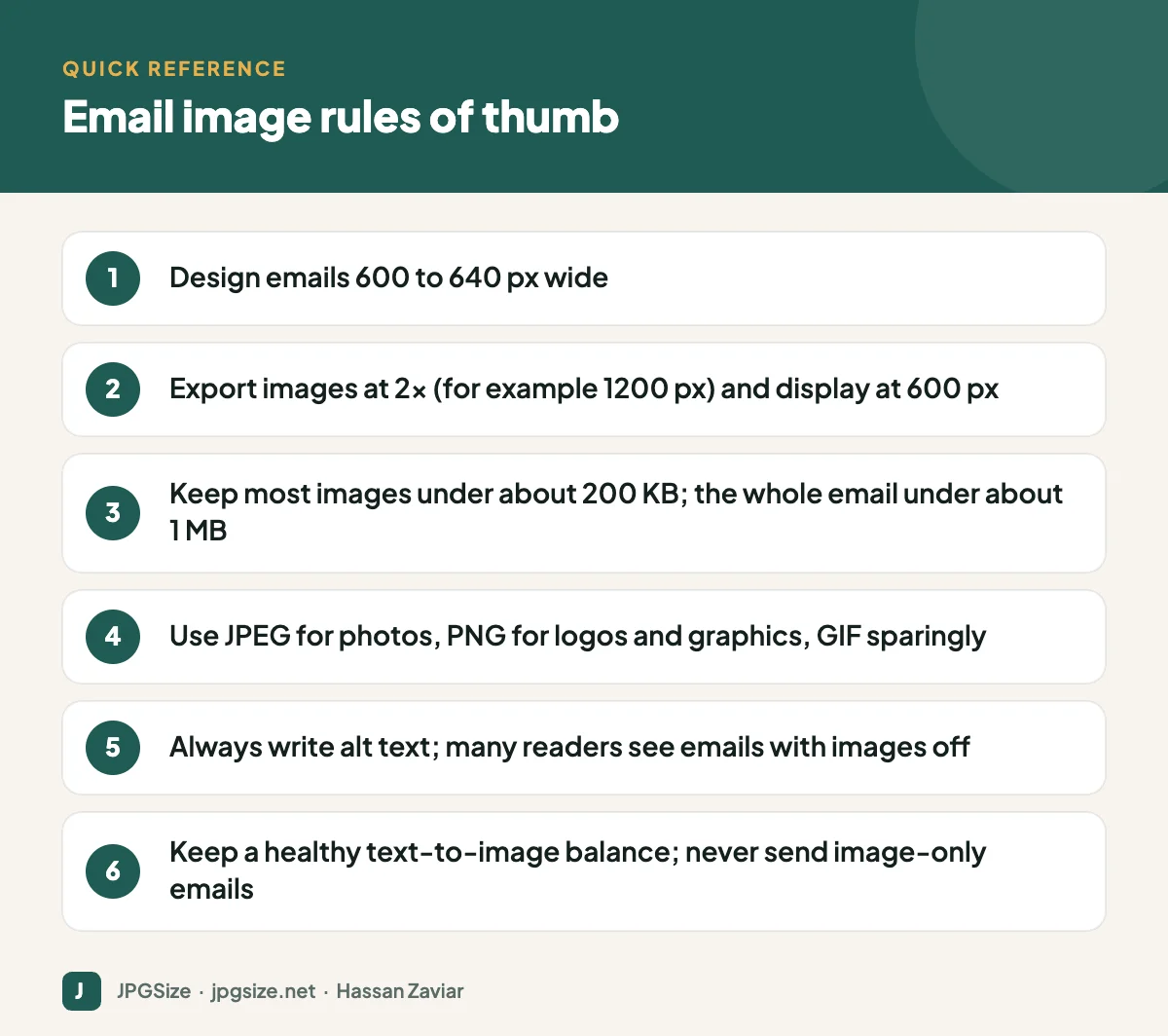
Quick answer: Design marketing emails 600 to 640 pixels wide, export images at twice that width for sharp display on high-resolution screens, and keep most images under about 200 KB so the whole email stays well under 1 MB. Use JPEG for photos and PNG for logos, add alt text to every meaningful image, check dark mode, and never send an email that is just one big image.
Email image sizes
| Element | Display width | Export width (2x) | Typical file size |
|---|---|---|---|
| Full-width hero or banner | 600 to 640 px | 1200 to 1280 px | 80 to 200 KB |
| Two-column product image | About 280 px | About 560 px | 30 to 80 KB |
| Three-column thumbnail | About 180 px | About 360 px | 15 to 40 KB |
| Logo | 150 to 200 px | 300 to 400 px | Under 20 KB |
| Social icons | 24 to 32 px | 48 to 64 px | A few KB each |
Set the display width in the HTML (width attribute and CSS), and use the larger exported file so it looks crisp on Retina and other high-density screens. Do not send a 3000-pixel camera photo; it wastes data and some clients will display it at full size.
Why file weight matters
- Load time: many emails are opened on phones, sometimes on slow mobile data. Heavy images mean blank space where your offer should be.
- Data costs: in markets where mobile data is expensive, heavy emails are a real cost to subscribers.
- Clipping: Gmail clips emails whose HTML code exceeds about 102 KB, hiding the rest behind a “View entire message” link. That limit applies to the HTML, not the images, but image-heavy templates often have bloated code too.
- Deliverability: very large emails and emails that are almost entirely images can look like spam to filters.
Compress every image before uploading it to your email platform. Our JPG compressor and resize image to 100KB or resize image to 200KB tools make this quick.
Choosing formats
- JPEG for photographs.
- PNG for logos, icons and graphics with text or transparency.
- GIF for simple animations. Keep them short and small, and make sure the first frame works on its own, because some versions of Outlook for Windows show only the first frame.
- WebP and AVIF give smaller files, but support across email clients is inconsistent, so JPEG and PNG remain the safe choice. See WebP vs AVIF vs JPEG.
Images off: design for it
Some email clients and corporate environments block images by default, and privacy features may load them through proxies. A reader should still understand your email without images:
- Put key information in live text: the headline, offer, dates and button labels.
- Use real HTML buttons, not images of buttons.
- Write alt text for every meaningful image, describing its message (“20% off all laptop bags until Sunday”). Style the alt text where your platform allows. See how to write alt text.
- Set background colours on image cells so layout holds together without images.
Dark mode
Many readers use dark mode, and email clients handle it differently: some leave colours alone, some invert light backgrounds, some invert everything. Common problems are dark logos disappearing on dark backgrounds and transparent PNGs showing odd edges. Fixes include adding a subtle light outline or glow around dark logos, avoiding pure black text inside images, and testing in the main clients your audience uses.
Deliverability and the text-to-image balance
There is no magic ratio, but emails that are mostly text with a few supporting images tend to perform more reliably than image-only designs. Include a real text version of your message, a plain-text alternative part, and avoid hiding key content inside images. Authentication (SPF, DKIM, DMARC), list quality and engagement matter far more for inbox placement than images, but image-only emails remove the text that filters and readers rely on.
Personalised and dynamic images
Email platforms can insert personalised images, such as the recipient’s name on a banner, countdown timers or live product recommendations. They can lift engagement, but they are generated when the email is opened, so test loading speed and fallbacks carefully.
Pre-send image checklist
- Every image resized to 2x its display width and compressed.
- Total email size comfortably under 1 MB, HTML under about 100 KB.
- Alt text on all meaningful images; decorative images with empty alt.
- Headline, offer and call to action readable with images off.
- Tested in light and dark mode on at least Gmail, Apple Mail and Outlook.
- Links on images point to the right, UTM-tagged landing pages; see GA4 for beginners.
Images that tend to earn clicks
- Product images with context: the product in use, not only on a white background, with a clear link to its page.
- One strong hero: a single, focused image that supports the main message beats a collage.
- Real people: customer photos and team photos feel personal and trustworthy.
- Visual previews of content: a thumbnail of a video with a play button, linking to the video page, often lifts clicks compared with a text link.
- Simple charts or before-and-after images for results-based products and services.
A quick workflow for newsletter images
- Choose images at the start, not at the last minute, so they support the message.
- Crop to the layout: full-width banners at 2:1 or 3:1, product tiles square.
- Resize to 2x display width with the resize image in pixels tool.
- Compress and check file sizes before uploading.
- Name files descriptively and write alt text as you place them in the template.
- Send a test to yourself on mobile and desktop, with images on and off.
Following the same routine for every campaign keeps emails consistent, fast and accessible, and avoids last-minute surprises when a hero image turns out to be 4 MB.
Frequently asked questions
What size should images be in an email?
Design emails 600 to 640 pixels wide and export images at twice their display width, for example 1200 pixels for a full-width banner, so they look sharp on high-resolution screens.
How large can an email image file be?
Aim for under about 200 KB for large images and much less for small ones, keeping the whole email under about 1 MB for fast loading on mobile.
Do images hurt email deliverability?
Images themselves are fine, but image-only emails, very heavy emails and missing text content can increase spam risk. Keep a healthy balance of live text and images.
Should I use GIFs in marketing emails?
Short, lightweight GIFs can add interest. Make sure the first frame communicates the message, because some versions of Outlook display only the first frame.
Sources and further reading
About the author: Hassan Zaviar writes about image optimization, SEO, AI and digital marketing for JPGSize and works on the site’s free browser-based image tools. Last reviewed: 24 September 2026. Spotted something out of date? Tell us and we will update it.